
Error message
Keep the complete message and nearby application name. Verify codes, paths, punctuation, and line breaks.
Screenshot OCR copies text from interface labels, messages, captions, and notes when direct selection is unavailable. Crop private or unrelated panels and verify punctuation, slashes, underscores, and code characters.
Check slashes, underscores, punctuation, code characters, and the order of separate panels. Remove private notifications and unrelated windows before upload.
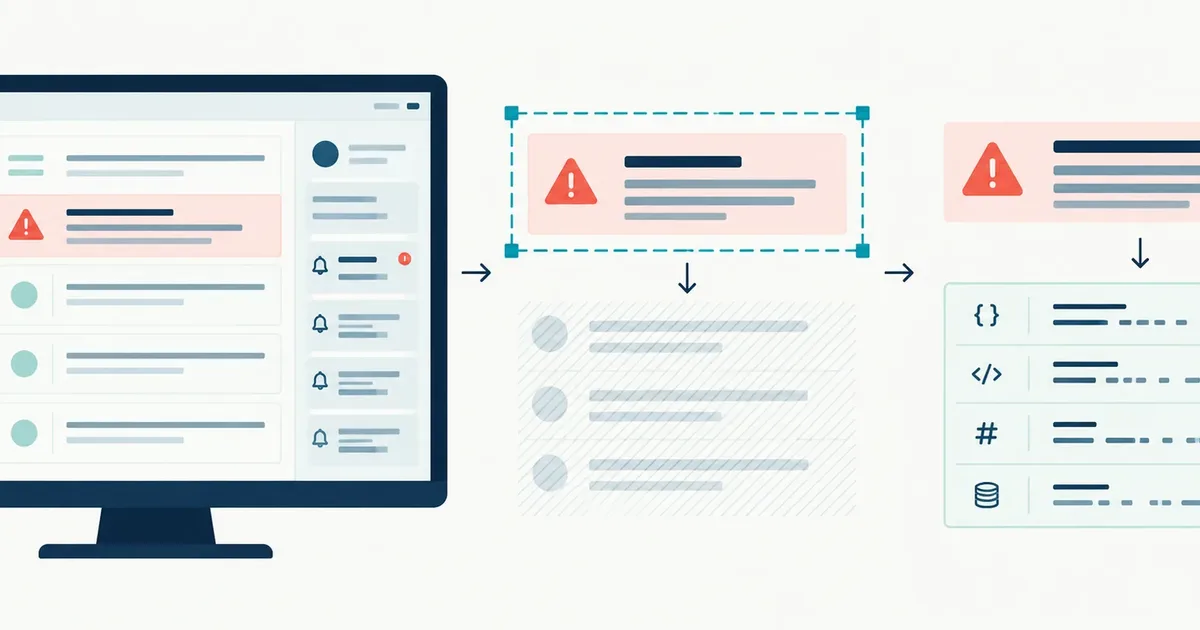
A full screenshot can contain unrelated panels and private context. A focused crop reduces reading-order noise, but punctuation and code-like characters still require character-by-character checking.
Screenshot OCR is useful for interface labels, messages, and captions when copying is unavailable, but mixed panels can disrupt reading order. Keep enough context to understand the message, then remove unrelated panels, conversations, account details, and notifications.
Keep the complete message and nearby application name. Verify codes, paths, punctuation, and line breaks.
Use sparse layout and inspect which label belongs to each switch, value, or control.
Capture at native scale and check small punctuation before copying the result elsewhere.
Crop names and messages that are not needed, then confirm speaker order against the capture.
A direct screenshot usually preserves UI text more clearly than a phone photograph of the screen. Avoid shrinking, forwarding, or recompressing the capture before OCR.
Avoid shrinking the screenshot before upload. Small interface labels lose distinguishing details quickly when resampled.
Crop personal notifications and unrelated windows, but retain enough surrounding text to understand the extracted result.
Menus, buttons, cards, and error labels are separate regions rather than one paragraph. Sparse-text mode can match that layout better.
Punctuation, slashes, underscores, and similar characters carry meaning in technical text and deserve character-by-character review.
One character can change a command, address, file path, error code, or configuration value. Compare these groups directly with the screenshot.
Screen captures can expose account names, avatars, browser tabs, message previews, access tokens, file paths, and background windows. Crop first, then inspect all four edges of the final image. For sensitive material, use the online OCR privacy checklist before deciding whether the capture belongs online.
Use OCR for Accessibility Goes Beyond Text Layers when the words are correct but panels, labels, and captions appear in the wrong order.
Before uploading captures with messages or notifications, review the screen-capture privacy and safety guides.
Error messages, interface labels, captions, chat excerpts, notes, and text that cannot be selected.
Bypassing access controls or replacing direct copy and paste when selectable text is available.
Punctuation, code characters, mixed panels, private notifications, and the order of interface regions.
TXT is convenient for messages and notes. Markdown helps separate readable blocks, while JSON and CSV make it easier to inspect the order and position of scattered interface labels.
Use TXT for a clean passage.
Use Markdown for notes with lightweight separation.
Use JSON or CSV for region and position diagnostics.
Yes. Capture the message at native scale, use sparse-text mode for separate interface regions, and verify technical punctuation before pasting it elsewhere. Learn why plausible OCR text can still be wrong.
Crop unrelated windows and private notifications, but keep enough nearby text to understand the result and its reading order. Check privacy before uploading a screen capture.