
You can select a sentence
The PDF probably has a text layer. A native extraction tool may preserve its existing characters better than OCR.
PDF OCR turns scanned page images into editable text. Use it when the PDF lacks selectable text, process no more than 25 pages per run, and verify page order, columns, tables, headers, and footers.
Compare every processed page with the visible scan. Columns, headers, footers, forms, and tables can contain correct words in the wrong sequence.
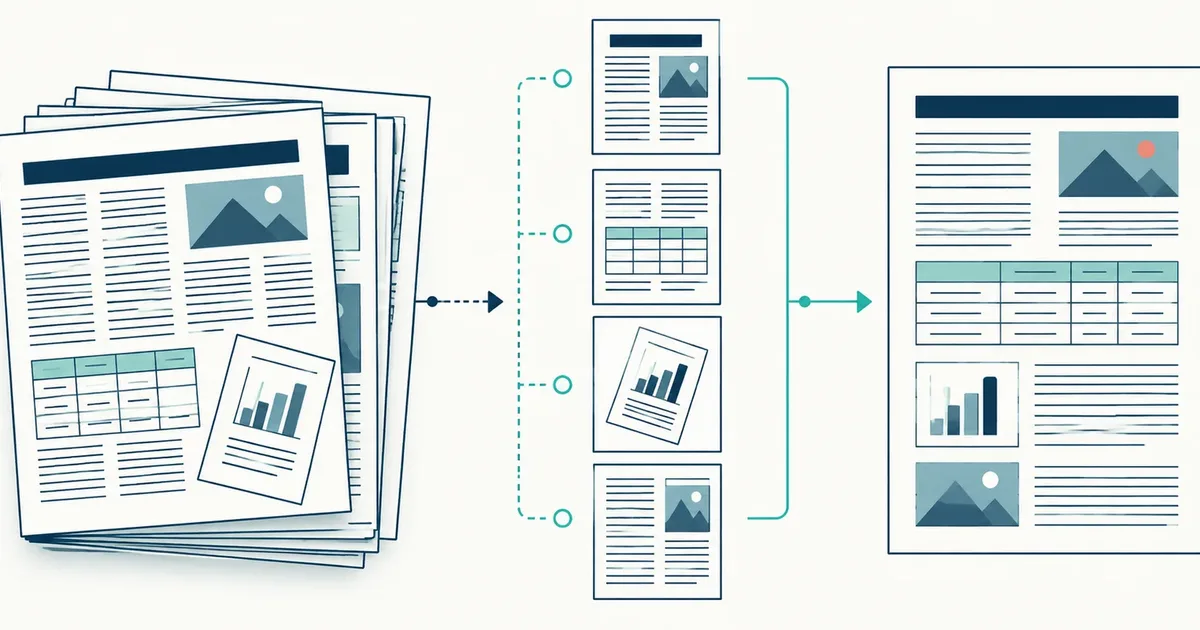
PDF OCR first has to preserve the page sequence, then recognize each page and reconstruct a useful reading order. Correct characters are not enough when columns, tables, or inserts arrive in the wrong place.
Use PDF OCR when pages are scans rather than selectable text, then review reading order one page at a time. Re-recognizing a PDF that already contains good selectable text can discard useful structure.
The PDF probably has a text layer. A native extraction tool may preserve its existing characters better than OCR.
The page is likely scanned or photographed. OCR can create a new text result for search, copying, and review.
Choose a representative range that includes the hardest layout. A cover page alone will not expose problems in columns, tables, rotated inserts, or faint appendices.
Try selecting a sentence in the PDF first. If the text is already selectable, extraction may preserve more structure than recognizing the page image again.
Start with representative pages instead of an entire long file. This makes rotation, language, and layout problems easier to detect before a larger run.
A correct word can still appear in the wrong reading sequence. Compare multi-column pages, headers, footers, and tables with the visible scan.
Use Markdown or JSON when downstream work needs to know where one scanned page ends and the next begins.
A PDF result can contain correctly recognized words that are useless because the reading order crossed columns, pulled a footer into a paragraph, or separated a form label from its value.
| Page feature | Typical failure | Review method |
|---|---|---|
| Two or more columns | Lines alternate across columns | Read each column from top to bottom against the scan |
| Headers and footers | Repeated text interrupts paragraphs | Compare page boundaries and remove repetition only after review |
| Forms and tables | Labels separate from values | Use positional output and verify each relationship |
Choose an output after reading Should You Keep a Searchable PDF or Plain Text?, especially when the visible page must remain the reference.
For page order, output choice, and accessible remediation, continue with the scanned-document workflow guides.
Scanned PDFs whose pages contain images of text instead of a usable text layer.
Extracting an existing native PDF text layer or creating a new searchable PDF file.
Page order, columns, headers, footers, tables, and page-range boundaries.
Markdown is useful when page breaks and readable sections matter. JSON keeps page-level result data, and CSV exposes local word positions for checking columns, headers, and table rows.
Try selecting and copying a sentence. If the page behaves like one flat image, OCR can create editable text. Learn what OCR adds to a scanned page.
No. It exports readable text and diagnostics; it does not write a new text layer into the PDF. Compare searchable PDF and text exports.