
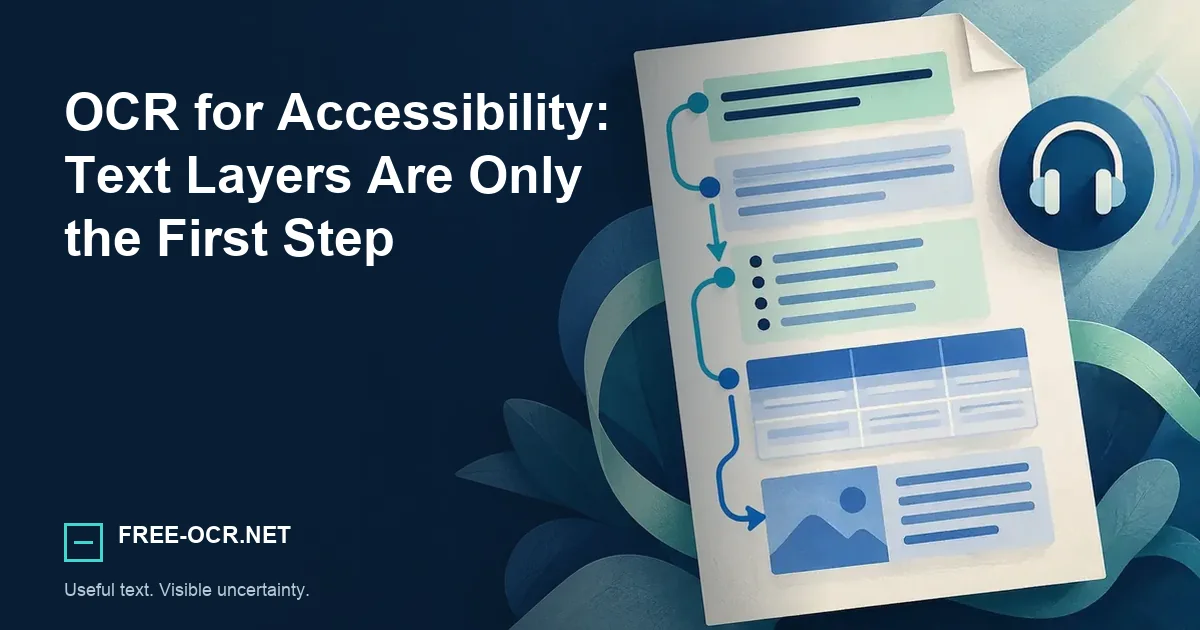
Make scanned documents more accessible by checking reading order, headings, tables, language, alt text, and OCR accuracy.
OCR is the first accessibility step
OCR can expose text trapped in a scan, but an accessible document also needs meaningful order, semantic headings, tagged structures, language settings, and accurate alternatives.
- Recognizable text
- Logical reading order
- Real heading hierarchy
- Tagged lists and tables
- Useful image alternatives
What OCR fixes
OCR can expose words that were previously trapped in page images. This enables search, selection, and a starting point for assistive technology. It does not automatically add correct headings, lists, table headers, or alternative text.
Recognition provides
Characters that can become searchable, selectable, and available to assistive technology.
Remediation provides
Relationships and meaning such as headings, lists, tables, labels, order, and alternatives.
When interface text cannot be selected, the Screenshot to Text tool can provide a draft for review and remediation.
Reading order
Multi-column pages, sidebars, footnotes, and forms can be announced in an incoherent sequence. Test the logical order independently from the visual page. A clean-looking PDF may still produce unusable speech output.
Start at the title
Follow the content without relying on its visual position.
Move through each region
Check columns, sidebars, captions, footnotes, and form labels in sequence.
Listen for changed meaning
Stop when an out-of-order passage separates a label from its value or a note from its subject.
Start by inspecting the extracted sequence with the scanned PDF to text tool, then remediate the document structure separately.
Language and structure
Set the document language, tag headings by hierarchy, identify lists and tables, and give informative images appropriate alternatives. Decorative images should not create noise.
- Language
- Set the document language so pronunciation and character interpretation have the right context.
- Headings
- Use a logical hierarchy that reflects sections rather than visual size alone.
- Tables
- Identify header cells and relationships instead of flattening every cell into a text stream.
- Images
- Describe informative images and keep decorative images from adding noise.
For lossless interface captures, the PNG to Text tool preserves the source pixels while exposing OCR diagnostics.
Quality assurance
Search for known phrases, copy representative passages, navigate by headings, and test with a screen reader. Review page numbers, hyphenated line endings, and characters that OCR commonly confuses.
Text check
Search known phrases and compare representative copied passages with the scan.
Structure check
Navigate by headings and verify tables, lists, and form labels.
Use check
Test the final reading sequence with assistive technology, not visual appearance alone.
The searchable PDF versus plain text guide explains what each output preserves and loses.
Method and sources
This guide distinguishes text recognition from document remediation. Accessibility claims require separate checks for reading order, headings, tables, language, and assistive-technology behavior. Reproduce the technical behavior with the documented Free-OCR.net OCR methodology.
- W3C PDF reading-order techniqueHow tagged PDF order affects keyboard and assistive-technology navigation.
- W3C meaningful-sequence guidanceWhy programmatic reading order must preserve meaning.