
Find text regions
OCR locates lines, labels, captions, and separate text blocks inside the image.
Image translator OCR reads scene text visible on signs, product labels, menus, notices, and packaging, then returns it as editable text. It keeps the wording in its source language and does not replace text inside the image.
The result keeps the source language. Check missing regions, reading order, names, figures, punctuation, units, and identifiers against the original image.
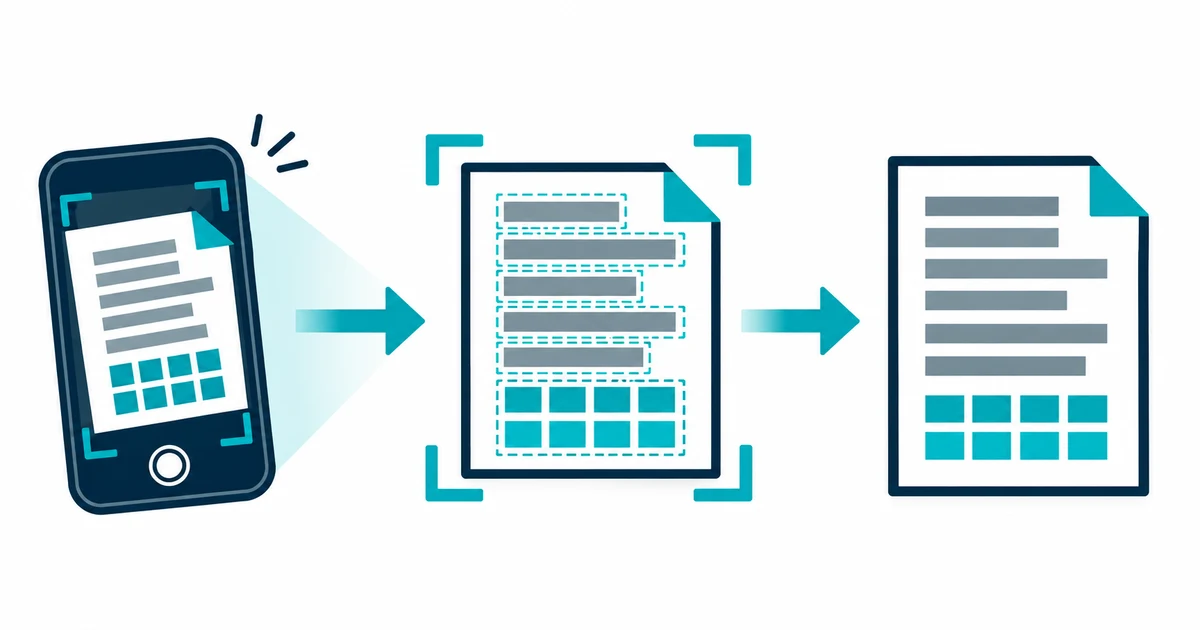
OCR finds text regions inside the image, recognizes the visible characters, and returns a text result that can be corrected and reused. The source image remains the authority during review.
Use this route to read and copy real-world scene text when manual retyping would be slow or error-prone. Here, “translator” describes the change from visual pixels to digital characters. The tool preserves the wording and language visible in the image. For mixed file formats, scans, and general document images, use the Image to Text converter.
OCR locates lines, labels, captions, and separate text blocks inside the image.
The engine converts visible letter and number shapes into machine-readable text without changing languages.
The extracted result can be corrected, copied, searched, or downloaded while the image remains the source of truth.
A page can look readable when zoomed out while individual characters remain too soft for reliable extraction. Start with the original file, keep the relevant context, and choose a layout that matches how the words are arranged.
Upload the largest clear source available. Blur, glare, resizing, and repeated compression can merge the small character details OCR needs.
Crop unrelated surroundings while keeping headings, labels, captions, and nearby values that establish the intended reading order.
Compare people, places, brands, dates, amounts, units, addresses, product codes, and warnings directly with the visible image.
Use automatic layout for ordinary pages, one text block for continuous prose, or sparse labels for signs, menus, and packaging panels.
OCR can return plausible words while skipping a label, merging separate regions, or confusing similar characters. Review the result in the same sequence that a person would read the image.
Prepare a difficult source with How to Improve OCR Accuracy Before You Upload, then use OCR for Accessibility Goes Beyond Text Layers when panels or columns need careful ordering.
For source order and reusable outputs, continue with the image extraction and document workflow guides.
Clear photos of signs, menus, product labels, notices, packaging, and other real-world scene text.
Changing languages, replacing text inside the image, or recreating the original visual design.
Names, figures, units, punctuation, safety instructions, identifiers, and text split across separate regions.
TXT is convenient for a clean reading copy and Markdown keeps lightweight structure. JSON and CSV retain local word positions and confidence diagnostics for checking the OCR result against the image. Keep the source image until every important field has been checked.
No. On this page, translate means converting image pixels into editable characters. The recognized wording stays in its source language. See how OCR converts pixels into text.
No. It creates a separate editable result and leaves the uploaded image unchanged. Use the source beside the result while correcting important fields. Review OCR reading order.