
Screenshot
Keep native dimensions and use sparse layout for separate controls, menus, captions, and messages.
PNG OCR extracts text from lossless scans, screenshots, diagrams, and interface captures. Keep the original pixel size and check transparency, overlays, labels, and reading order against the source.
Check low-contrast overlays, transparent regions, isolated labels, and the order of interface panels. Lossless storage does not repair a small or blurred source.
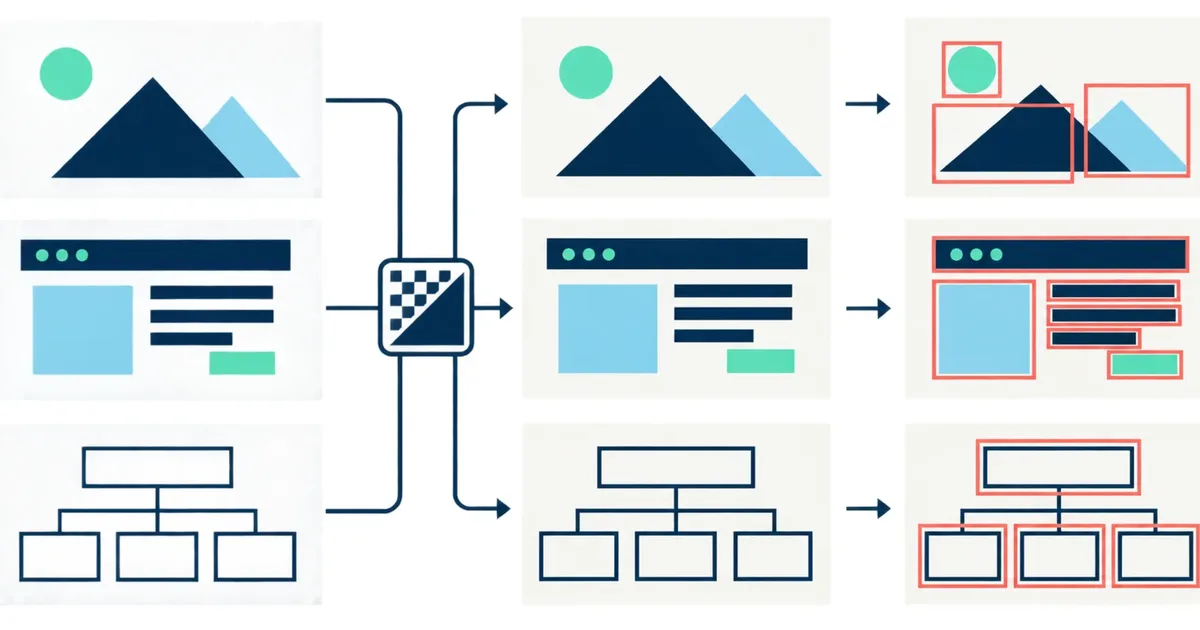
PNG can preserve crisp source pixels without adding JPEG artifacts. It does not explain whether the image is a screenshot, diagram, or scan, so layout and transparency still have to be checked.
PNG is a strong OCR source for screenshots and lossless scans, provided the text remains large enough at its actual pixel size. A screenshot, a flatbed scan, and a diagram may share an extension while needing different layout and review choices.
Keep native dimensions and use sparse layout for separate controls, menus, captions, and messages.
Check rotation, faint strokes, page edges, and whether the source has enough resolution for its smallest print.
Expect labels to sit apart from one another. Review their spatial relationship with shapes and arrows.
PNG avoids new lossy compression, but the container cannot restore a small, blurred, or badly captured source.
Use the original screenshot or scan. Enlarging a small PNG creates more pixels but does not restore missing character detail.
Transparent text or interface layers may lose contrast on a different background. Check that every character is visible before upload.
Remove sidebars, notifications, and unrelated panels when they could interrupt reading order or be mistaken for document content.
Screenshots with isolated buttons, labels, or captions often benefit from sparse-text mode instead of a continuous paragraph assumption.
Transparent and semi-transparent text can appear readable in one editor but lose contrast when flattened against another color. Preview the exported PNG on a plain background before processing.
Use OCR for Accessibility Goes Beyond Text Layers when labels, panels, or columns appear in the wrong sequence.
For reading order, structure, and output decisions, use the document and interface workflow guides.
Lossless scans, screenshots, diagrams, and interface captures at their native pixel size.
Restoring details missing from a small source or preserving transparent layers as editable objects.
Reading order, low-contrast overlays, transparent text, and isolated interface labels.
Markdown works well for readable screenshot notes. JSON and CSV are better when labels, overlays, or separate interface regions need positional review against the original PNG.
PNG preserves pixels without new JPEG artifacts, but a small or blurred PNG still lacks useful character detail. The best source is usually the original file. See which source problems OCR cleanup cannot repair.
It can read text that remains visible after the transparency is flattened, but low contrast can make characters disappear into the background. Review reading order for interface captures.