
Stabilize before capture
Brace the phone, add light, and focus on the text plane. Sharpening cannot reconstruct detail removed by motion blur.
JPG OCR converts photographed or JPEG-scanned text into editable text. The original, square, evenly lit photo usually works best because OCR cannot reverse blur or detail lost through repeated JPEG compression.
Review characters near glare, shadows, perspective distortion, and image edges. OCR cannot reconstruct strokes already removed by motion blur or JPEG compression.
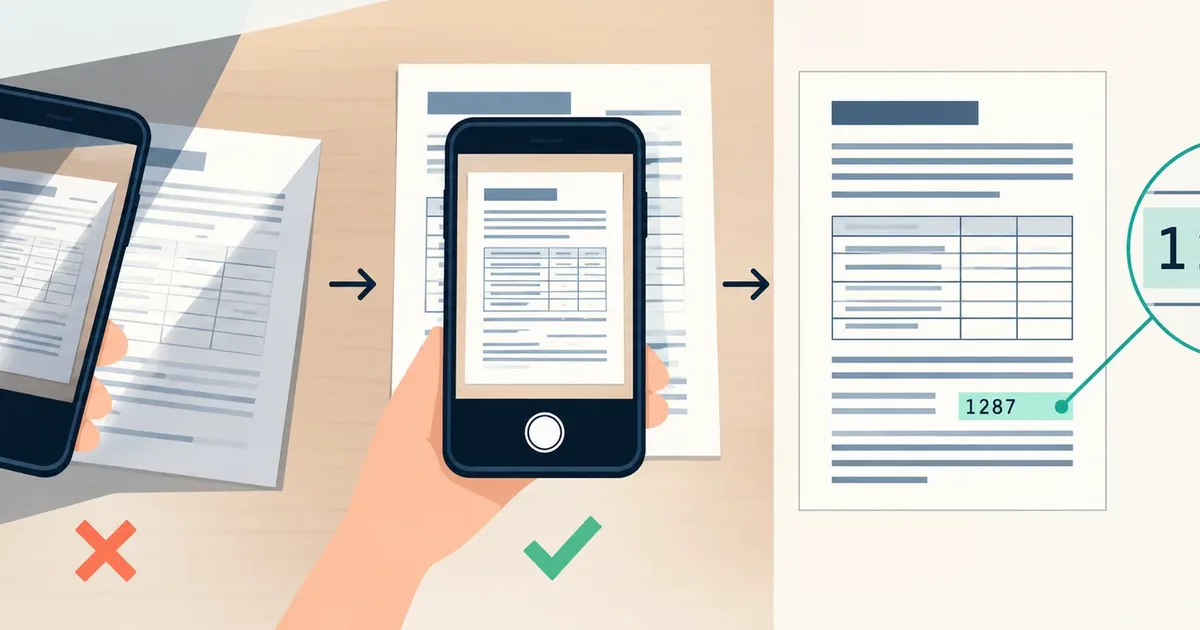
The first capture loses character shape through angle, glare, and uneven scale. A parallel, evenly lit photograph gives OCR clearer strokes, but small numbers still need direct comparison with the source.
JPG OCR works best on square, well-lit camera captures where compression has not softened small character details. Look at the text plane rather than the full photo: a page can appear clear while its smallest digits are blurred, compressed, or distorted.
Brace the phone, add light, and focus on the text plane. Sharpening cannot reconstruct detail removed by motion blur.
Hold the camera parallel to the document so lines remain straight and characters do not shrink toward one edge.
Use even illumination and move the camera or light source when glossy paper creates glare across the text.
Upload the original camera file when possible. Social and messaging services may recompress JPEG images and damage fine strokes.
Do not apply every filter at once. Identify the part of the image that lost character detail, correct that cause, and photograph the page again when possible.
Decimals, dates, prices, model numbers, and identifiers often occupy fewer pixels than body text. Compare them one by one with the source, including punctuation and leading zeroes.
Work through How to Improve OCR Accuracy Before You Upload if the image is readable but the result still contains unstable characters.
For focus, lighting, perspective, and resolution choices, browse the capture and OCR accuracy guides.
Original camera photos and JPEG scans with square framing, even light, and readable characters.
Recovering detail removed by motion blur, tiny thumbnails, glare, or repeated JPEG compression.
Small print, characters near shadows, decimal marks, and text close to the image edge.
Use TXT for a clean copy from a camera image. Choose JSON or CSV when glare, perspective, or JPEG artifacts mean you need positions and confidence beside the recognized words.
TXT is the shortest route from a readable photograph to text you can paste.
JSON or CSV is more useful when perspective, glare, or compression makes positions and confidence worth inspecting.
No format change can restore character detail already removed by blur or JPEG compression. Use the least-compressed original instead. Work through the OCR accuracy checklist.
Glare, perspective, small digits, and compression can make similar characters look alike even when the full page looks readable. Use confidence to prioritize number checks.