
Include the complete header
Supplier, date, reference, and currency often sit outside the line-item grid.
Invoice and receipt OCR turns visible fields and line items into reviewable structured data. It does not validate the transaction, so compare the supplier, date, invoice number, tax, total, currency, and every line item with the source before accounting use.
OCR does not approve an expense or validate arithmetic. Review every field and recalculate financial totals before use.
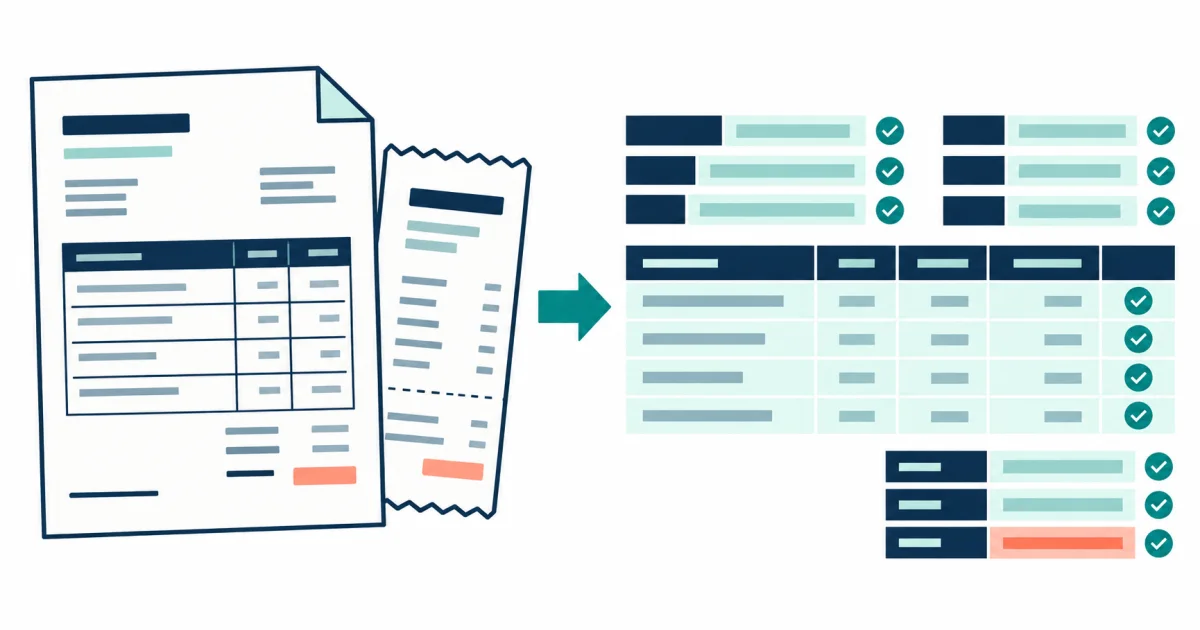
The recognizer proposes fields from the visible page. The review step exposes those values and keeps arithmetic and source comparison as explicit human decisions.
Use this tool when the field relationships and amounts matter more than a plain transcription. The tool proposes structured values from the page, but it cannot decide whether a charge is legitimate, coded correctly, or paid.
Small punctuation carries financial meaning. A missing decimal, minus sign, or currency code can matter more than a misspelled description.
| Field group | Common recognition risk | Required check |
|---|---|---|
| Reference and date | Similar digits or reordered dates | Compare with the header |
| Line amounts | Lost decimals and shifted columns | Recalculate from quantity and price |
| Tax and total | Wrong sign, rate, or currency | Check the source and arithmetic |
Supplier, date, reference, and currency often sit outside the line-item grid.
Avoid thresholding that removes small periods or joins commas to nearby digits.
Parentheses and minus signs can reverse the meaning of a value.
Use the extracted data as a draft, then independently check arithmetic and business rules.
Do not normalize symbols or convert currencies during extraction because the reviewed record should reflect exactly what the document displays.
Follow A Field-First OCR Workflow for Receipts, Invoices, and Tables for a field-first check.
For field validation and table decisions, use the invoice and table OCR workflow guides.
Printed invoices, itemized receipts, and clear purchasing documents.
Approving expenses, detecting fraud, validating suppliers, or providing tax advice.
Supplier, date, reference, currency, line quantities, unit prices, tax, and total.
No. It extracts visible values. Recalculate line items, tax, discounts, and totals against the source before use. Follow the field-first review workflow.
Use a sharp full-length scan or overlapping square captures. A distant photo often makes individual characters too small. Improve the capture first.