
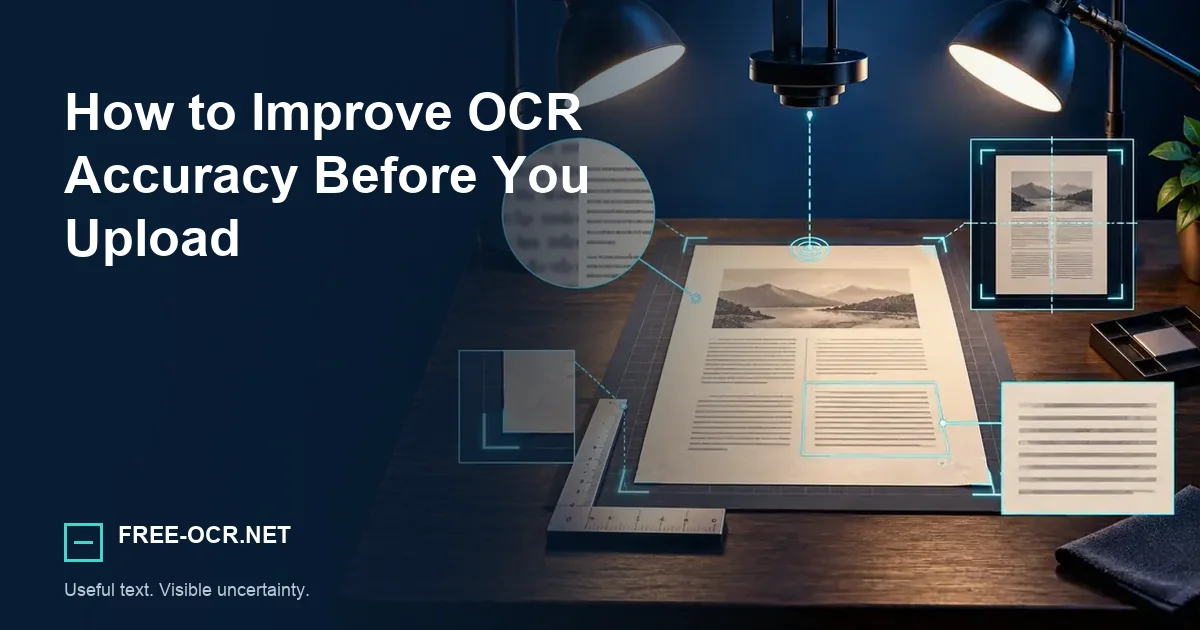
Improve OCR accuracy with a practical checklist for resolution, focus, rotation, lighting, contrast, page flattening, and language selection.
Fix the source before the result
OCR accuracy improves when letters are sharp, large, upright, well lit, and grouped with the correct page-layout assumption.
- InspectCan you distinguish every important character?
- CorrectChange one capture or layout problem.
- RetestCompare the same representative region.
Make characters large enough
For ordinary printed text, scans around 300 dpi are a dependable starting point. Camera images do not expose a trustworthy dpi value, so inspect character height instead: body letters should span enough pixels to retain open counters and distinct stems.
Look at the smallest important text
Zoom to 100 percent. If counters inside letters such as e, a, and 8 have closed up, scan again or move the camera closer rather than enlarging the existing file.
For scanner settings and small print, use the scan DPI decision guide before processing a large batch.
Control blur before contrast
Sharpening cannot restore detail that motion blur removed. Brace the phone, use more light, keep the page parallel to the sensor, and tap to focus on the text plane. Then improve contrast if the paper and ink remain too similar.
- Double edges: stabilize the camera and use a faster exposure with more light.
- Soft edges everywhere: focus on the text plane and avoid digital zoom.
- Faint paper and ink: improve even lighting before increasing contrast.
For camera captures, the JPG to Text tool pairs format-specific capture advice with the OCR workspace.
Straighten and flatten
A small page rotation can disrupt line grouping. Curved book pages distort character shapes differently across the line. Capture each page square-on and flatten only as much as the binding safely allows.
Rotation problem
Lines slope together across a flat page. Correct the page angle before recognition.
Curvature problem
Character shapes change across a book gutter. Recapture with a flatter, safer page position.
Crop distractions
Desk edges, fingers, shadows, hole punches, and neighboring pages can create false text regions. Crop to the document while leaving a narrow margin so characters at the edge are not clipped.
Crop tightly, not destructively
Remove unrelated objects and neighboring pages, but leave a clean margin so the first and last characters are not cut off.
Long receipts and table-heavy pages need additional structure checks described in the receipt, invoice, and table OCR workflow.
Match layout mode to the page
A single paragraph, a sparse label, and a dense multi-column report need different segmentation assumptions. Start with automatic layout, then try a single-block mode when the page truly contains one continuous text area.
- Automatic
- Start here for an ordinary page with mixed but familiar document regions.
- Single block
- Use for one continuous rectangle of paragraph text without sidebars or columns.
- Sparse text
- Use for labels, screen elements, diagrams, or text spread across separate areas.
Apply one change at a time and compare the result in the Image to Text OCR tool.
If OCR returns blank or almost nothing
Check that the selected page contains visible text, the characters are large enough, and the foreground contrasts with the background. Remove oversized dark borders and empty margins, but keep a small clean border around tightly cropped text. For PDFs, confirm that the requested page range exists.
- Confirm that the requested page exists and contains visible text.
- Remove large empty margins or dark frames.
- Try the correct language and a layout mode that matches the page.
- Retest a small, clear region to separate source and system problems.
The live controls and local fallback behavior are documented in the OCR methodology.
If text is garbled or in the wrong order
Separate character errors from layout errors. A wrong letter points to focus, size, contrast, or language. Correct words in the wrong sequence point to columns, tables, sidebars, or an unsuitable layout mode. Retest one representative region before repeating a full batch.
Wrong characters
Recheck focus, character size, language, contrast, and compression.
Wrong sequence
Recheck columns, tables, sidebars, and the chosen layout mode.
When words are plausible but uncertain, use the confidence-score guide to set a review priority.
Method and sources
The checklist changes one source or layout variable at a time so a result can be compared with the same page. It does not claim that cleanup can reconstruct character detail already lost to blur or compression. Reproduce the technical behavior with the documented Free-OCR.net OCR methodology.
- Tesseract output-quality guidanceOfficial guidance on rescaling, skew, borders, noise, transparency, and page segmentation.